From October 28 to 29th, 2026, Lisbon became the epicenter of Data Resilience as Veeam hosted its exclusive Veeam100 Summit. This annual gathering brought together Veeam Vanguards, Legends, MVPs, and User Group Leaders from around the world for deep technical sessions, strategic discussions, and a first look at the next generation of Veeam solutions.
Following the recent Veeam100, I wanted to share a complete, hands-on guide to deploying Veeam Software Appliance v13.1.

Introduction
With Veeam Data Platform v13, Veeam introduced one of the most significant architectural changes in the history of Veeam Backup & Replication: the ability to deploy the Veeam backup server as a Linux-based software appliance.
Veeam Software Appliance, or VSA, uses a Veeam-managed Just Enough Operating System (JeOS) based on Rocky Linux. Instead of deploying and maintaining a traditional Windows Server, administrators now get an integrated platform combining the operating system, Veeam services, Host Management Console, Web UI and update mechanism.
The appliance is designed around a hardened security model that includes certificate-based pairing, SELinux enforcement, firewalling, disabled SSH by default, a non-root administration model and DISA STIG-derived hardening.

In this article, I will walk through the deployment of a new Veeam Software Appliance v13.1 from scratch.
I’ll also use several short videos to show the actual installation and configuration process.
1. Understanding the Veeam Appliance Architecture
Before deploying anything, it is important to understand the terminology.
Veeam now distinguishes several appliance roles.
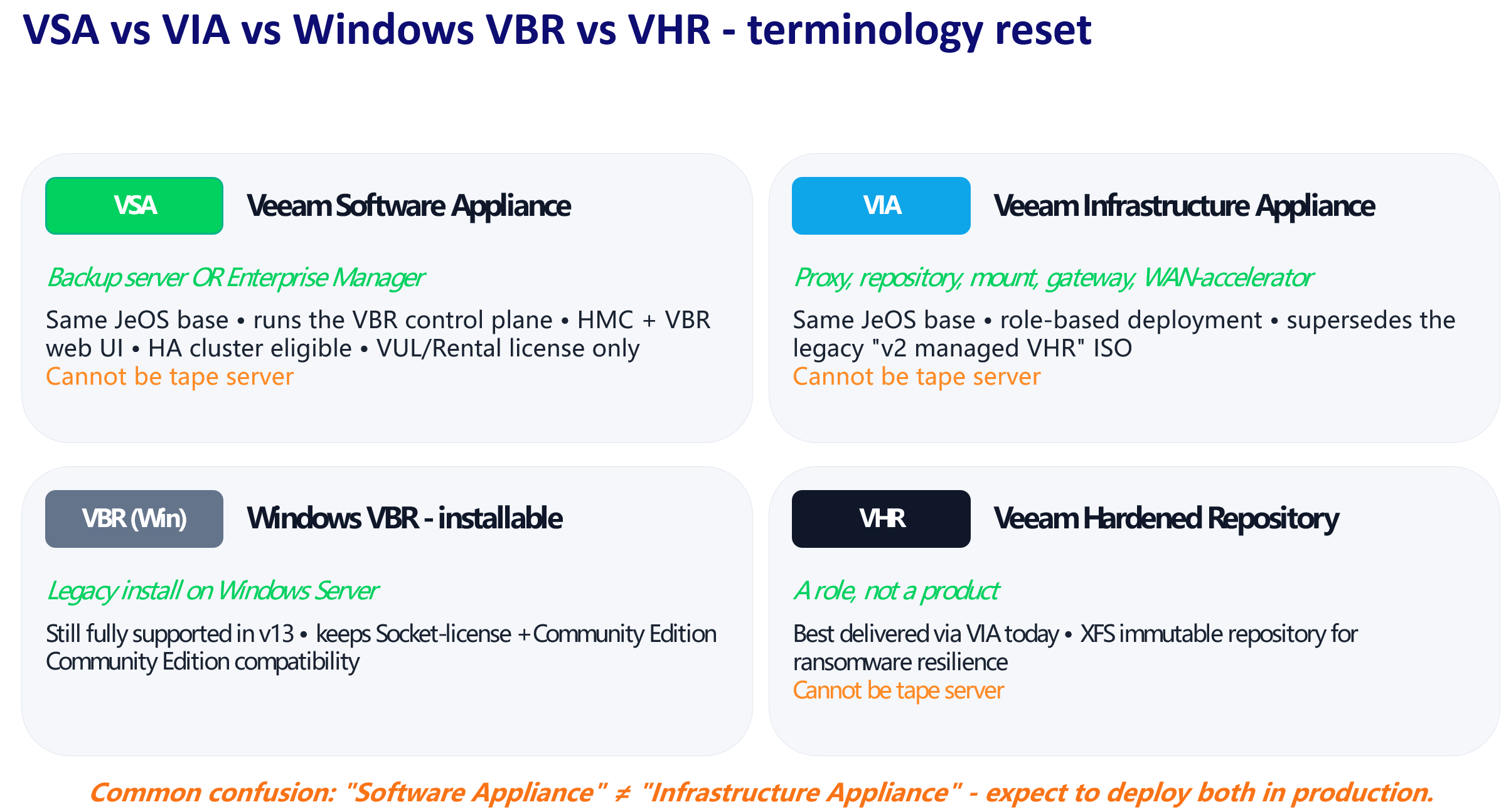
VSA: Veeam Software Appliance
The VSA runs the Veeam Backup & Replication control plane and can also host Enterprise Manager. It uses the Veeam JeOS operating system and exposes both Host Management Console and the VBR Web UI.
VIA: Veeam Infrastructure Appliance
The VIA uses the same JeOS foundation but is intended for infrastructure roles such as proxy, repository, mount server, gateway and WAN accelerator.
VHR: Veeam Hardened Repository
The Hardened Repository should be considered a role, rather than a separate Veeam product. The presentation recommends delivering this capability through a VIA-based architecture.
This distinction becomes important when designing a production environment.
A simple architecture can run the backup server, proxy and repository functionality together.
A larger environment should separate the control plane from the data plane.
2. What Is Inside the Appliance?
The appliance is not simply Veeam installed on a generic Linux distribution.
Veeam provides its own managed JeOS environment containing the components required to operate the relevant Veeam roles.
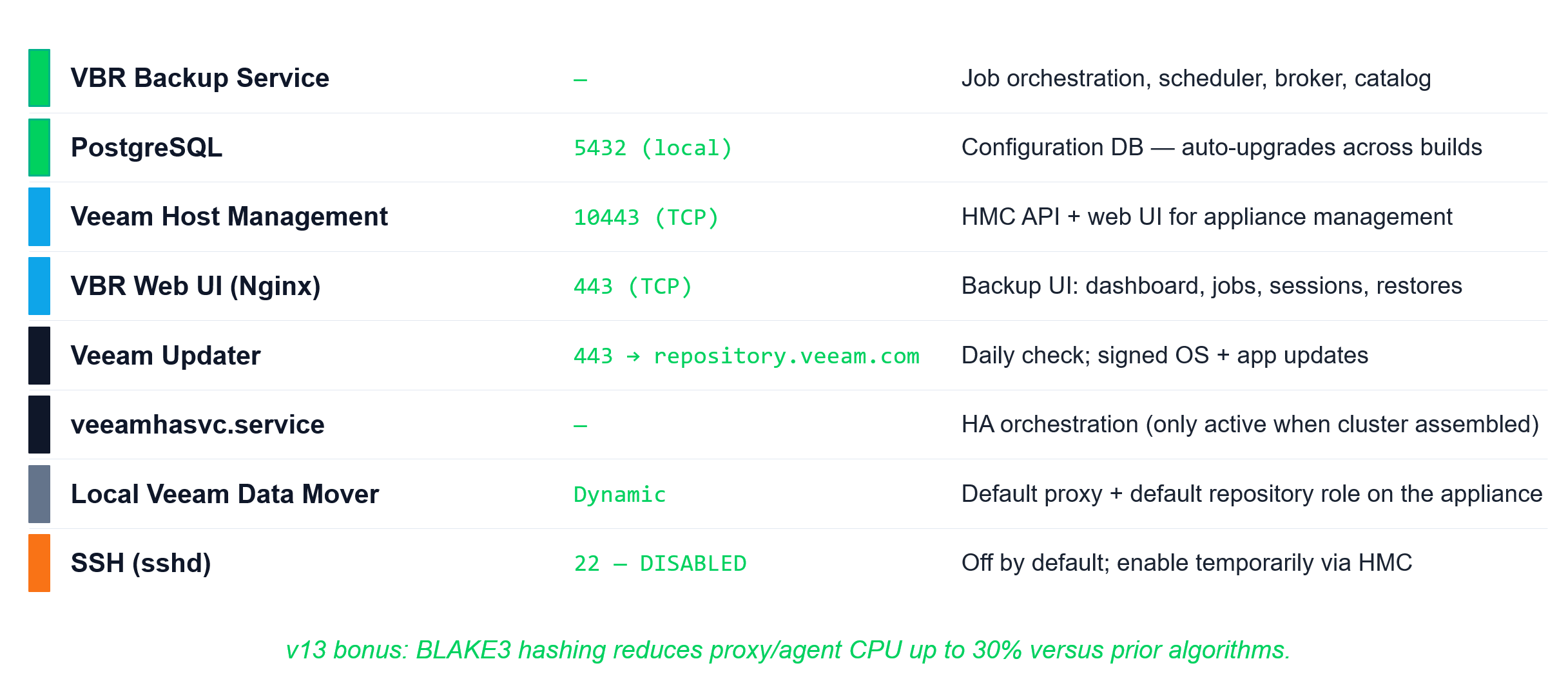
On a VSA, the architecture includes components such as:
- Veeam Backup Service
- PostgreSQL
- Veeam Host Management
- VBR Web UI
- Veeam Updater
- local Veeam Data Mover
- HA services when an HA cluster is configured
The presentation identifies TCP 10443 for Host Management Console and TCP 443 for the VBR Web UI.
PostgreSQL operates locally on 5432. SSH on TCP 22 is disabled by default and can be temporarily enabled through HMC.
This is an important architectural evolution.
Instead of maintaining Windows, database prerequisites and the Veeam application separately, the appliance creates a much more predictable operational model.
3. Choosing Your Deployment Architecture
Before downloading the appliance, determine how the backup infrastructure will be structured.
There are essentially two scenarios worth considering.
Option 1: Simple VSA deployment
For labs, proof-of-concepts or smaller environments, the VSA can combine:
- VBR control plane
- Host Management Console
- local proxy role
- local repository
The presentation positions this simple model for labs, PoCs and small offices, with an example target of up to 20 VMs.

This architecture is perfect for the deployment walkthrough in this article.
For production environments, however, I would generally prefer separating management from backup data storage.
Option 2: Distributed architecture
In a larger environment, the VSA becomes the control plane, while VIA appliances provide infrastructure functions.
The presentation extends that architecture further with HA VSA nodes, a VIA fleet, object storage/capacity tiers and Veeam ONE monitoring.

For a critical production deployment, this separation is much more attractive because backup management and backup data do not have to reside within the same appliance.
4. Step 1: Check the System Requirements
Sizing should be one of the first checks before deploying the appliance.
The VSA requirements presented for v13.1 include a minimum of:
| Resource | Minimum |
|---|---|
| CPU | 8 x86-64 cores |
| RAM | 16 GB |
| Additional RAM | 500 MB per concurrent job |
| Storage | 2 × 240 GiB or more |
| Network | 1 Gbps |
| Recommended network | 10 Gbps |

My recommendation
Do not size only for the software installation.
Think about:
- number of protected workloads;
- concurrent backup tasks;
- repository architecture;
- log growth;
- catalogue/indexing;
- expected backup throughput;
- future growth.
For a production environment, I would normally separate backup data onto dedicated repository infrastructure instead of treating the VSA’s internal storage as the primary long-term repository.
5. Step 2: Prepare the Network
Before deployment, prepare at least:
- Hostname
- IP address
- Subnet mask
- Default gateway
- DNS servers
- DNS record
- NTP/time source
Also check firewall requirements between the appliance and the infrastructure that Veeam will manage.
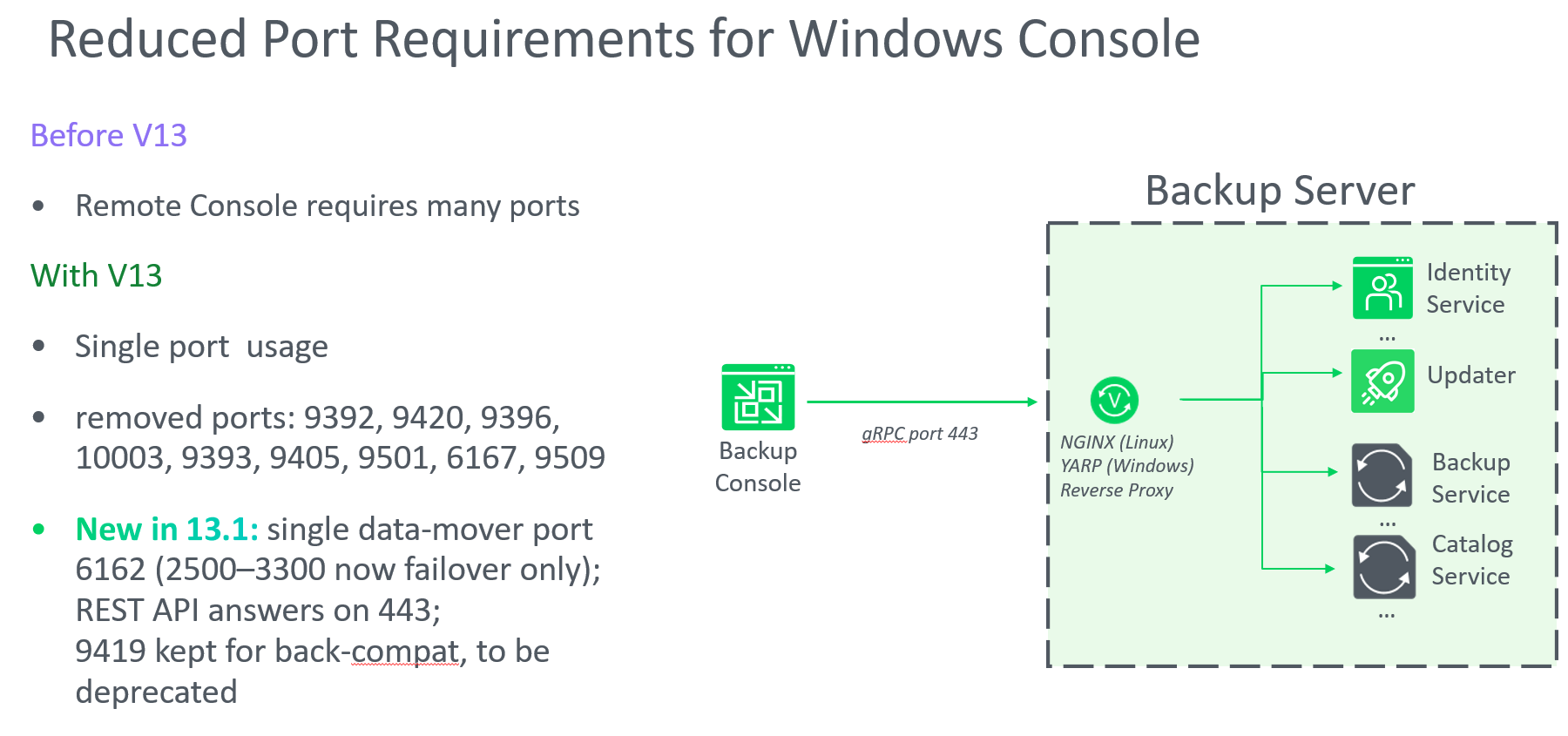
A significant architectural improvement from v13 is the simplification of communications through reverse-proxy architecture. The presentation notes that v13 reduced the number of ports required by the Windows console, while v13.1 introduces a single data-mover port, TCP 6162, with ports 2500-3300 retained as failover only.
6. Step 3: Obtain the Veeam Software Appliance
Download the appropriate appliance deployment image through your authorised Veeam software distribution channel.
Before introducing the appliance into production, verify that you are using the expected v13.1 build and review the corresponding release information.
This sounds obvious, but it is especially important with an appliance model because the OS and application lifecycle are managed together.
Video 1 – Downloading and preparing Veeam Software Appliance v13.1
Direct link on Youtube.
7. Step 4: Deploy the Appliance
Deploy the VSA onto the target virtual or physical infrastructure using the deployment method appropriate to your environment.
Allocate the CPU, memory, storage and networking resources decided during the sizing phase.
At this point, double-check the most difficult settings to change later:
- IP address
- Gateway
- DNS
- Hostname
- vCPU
- Memory
Storage:
System disk
Secondary disk / repository design
A deployment problem I see frequently in backup infrastructures is treating DNS and time synchronisation as secondary considerations. They are not.
Get DNS, routing and time synchronisation correct before introducing repositories, proxies and workload integrations.
8. Step 5: Perform the Initial Appliance Configuration
Once the VM has booted, proceed through the initial appliance setup.
Configure the host identity and network parameters, then verify connectivity to the management network and DNS infrastructure.
At this stage, you are configuring the appliance itself, not yet designing backup jobs.
That distinction is important because v13 introduces two management layers:
Host Management Console
Used to manage appliance-level functions and security.
The presentation identifies HMC on: https://<VSA-address>:10443
VBR Web UI
Used for backup management functionality and exposed through HTTPS on TCP 443.
Keeping these responsibilities separate is one of the important security concepts in the new architecture.
9. Step 6: Configure the Host Administrator
Create and secure the Host Administrator account during the initial configuration.
According to the role model in the presentation, the Host Admin can manage both Host Management Console and Backup & Replication, while VBR users can be restricted to backup operations.
This creates a useful separation between:
- appliance administration;
- security administration;
- backup administration.
Do not simply create one shared “Veeam administrator” account for everyone.
Treat the appliance as a security infrastructure component.
10. Step 7: Configure the Security Officer
This is one of the most important steps of the deployment.
The Security Officer provides an independent approval path for sensitive appliance operations.
The presentation lists Security Officer responsibilities including approval of actions such as:
- temporarily enabling SSH;
- approving data collection;
- approving configuration restoration;
- resetting other users’ MFA or passwords;
- managing the configuration-backup passphrase.
Veeam therefore provides controls capable of separating day-to-day administration from particularly sensitive security operations.
Video 2 – Change Password
Direct link on Youtube.
11. Step 8: Secure and Store the Recovery Information
Recovery information generated during the security configuration should be treated as highly sensitive.
My recommendation:
Store recovery material outside the Veeam infrastructure and outside the security boundary it is designed to recover.
For example, organisations may use an appropriately secured enterprise password vault or controlled break-glass process.
The presentation’s executive summary specifically recommends storing the Security Officer recovery token offline.
This is a small operational step, but it can become extremely important during a cyber incident.
12. Step 9: Configure MFA
MFA should be enabled for administrative access wherever the deployment and operational model support it.
V13.1 extends MFA capabilities in the appliance management model, and the presentation identifies MFA as one of the core security functions built on top of the pre-hardened OS.
The authentication architecture should ultimately follow a principle such as:
Identity
↓
Authentication
↓
MFA
↓
RBAC
↓
Administrative operation
↓
Additional approval for sensitive operations
13. Step 10: Review the Built-in Hardening
One of the biggest differences between installing Veeam yourself and deploying the software appliance is that OS hardening is part of the appliance design.
According to the presentation, JeOS includes controls such as:
- certificate-based pairing;
- SSH disabled by default;
- firewall enabled;
- SELinux enforcement;
- DISA STIG-derived baselines;
- non-root administration;
- restricted sudo;
- Security Officer functionality.

This has an important operational consequence:
Do not approach JeOS as though it were a conventional Rocky Linux server that you happen to own.
Treat it as an appliance.
The whole point of the model is for Veeam to maintain a known and controlled operating environment.
14. Step 11: Access Veeam Backup & Replication
Once appliance initialisation is complete, connect to the VBR management interface.
For day-to-day operations, v13.1 continues the transition toward Web UI management. The release information in the presentation highlights additional Web UI coverage including Nutanix AHV, agent management, unstructured data, backup copy improvements, Active Directory and SQL restore functions, and custom RBAC roles.
However, your operational design should account for functions that still require other management interfaces rather than assuming complete Web UI parity.
15. Step 12: Add Your Backup Infrastructure
Once the VSA control plane is operational, start adding infrastructure.
A good production sequence is:
↓
2. Repository / VIA
↓
3. Proxy infrastructure
↓
4. Virtualisation platforms
↓
5. Object storage / capacity tier
↓
6. Protected workloads
↓
7. Backup policies
Do not begin by creating dozens of backup jobs.
Build the infrastructure first.
16. Step 13: Deploy a Veeam Infrastructure Appliance
For a production environment, the next logical step is to introduce one or more VIAs.
A VIA can provide infrastructure roles including proxy, repository, Hardened Repository, mount, gateway and WAN accelerator according to the presentation.

17. Step 14: Add a Hardened Repository
For cyber-resilient deployments, consider deploying the repository role separately.
The presentation describes VHR as a role and positions VIA as the preferred appliance method for delivering an XFS immutable repository.
This provides much stronger separation than storing the only copy of production backups directly on the management appliance.
18. Step 15: Configure Updates
Patch management is another major advantage of the appliance approach.
V13.1 supports several Veeam update distribution models, including direct connection to the official Veeam repository, an Enterprise Manager mirror, and a local self-managed mirror.
This is particularly useful for restricted environments where backup infrastructure should not have unrestricted Internet access.
The Enterprise Manager model described in the presentation caches updates and distributes them to appliances.
Video 3 – Configuring Veeam Appliance Updates:
Direct link on Youtube.
19. Step 16: Configure Monitoring
Backup infrastructure should never be a black box.
V13.1 exposes appliance performance metrics using Prometheus Node Exporter. The presentation identifies metrics including CPU, RAM, disk usage, network traffic, system load and Veeam service status.
The metrics endpoints shown are:
- https://<appliance>:443/metrics
- http://<appliance>:80/metrics
Because Node Exporter uses a standard metrics format, this opens interesting integration possibilities with existing observability platforms.
The presentation additionally differentiates Prometheus-style metrics from syslog, with syslog covering areas such as logs and audit information and Node Exporter providing system resource metrics.
20. Step 17: Review Security Compliance
After the appliance and backup infrastructure have been deployed, review the security configuration before considering the deployment finished.
VSA security capabilities highlighted in the presentation include:
- MFA;
- authentication controls;
- Security Officer;
- infrastructure lockdown;
- certificate management;
- FIPS compliance;
- four-eyes authorisation;
- RBAC/custom roles;
- Security Compliance Analyzer.
In other words:
Installation complete does not mean deployment complete.
21. Step 18: Run the Security Compliance Analyzer
Use the Security Compliance Analyzer after initial configuration to identify settings requiring attention.
It should also become part of the operational lifecycle rather than something run only on installation.
For example, include security posture review:
After deployment
↓
After major configuration changes
↓
After infrastructure extensions
↓
Periodically during operations
↓
Before recovery exercises
This turns hardening into a continuous process rather than an installation checklist.
22. Optional: Configure High Availability
For environments where loss of the Veeam control plane is unacceptable, v13.1 provides an HA architecture based on two VSA nodes.
The presentation describes:
- primary and secondary nodes;
- configuration synchronisation;
- PostgreSQL;
- Patroni;
- manual failover;
- automated failover with Veeam ONE;
- same-subnet configurations;
- cross-subnet configurations in v13.1.
In a same-subnet configuration, the presentation specifies three IP addresses: - Primary VSA IP
- Secondary VSA IP
- Cluster IP
and recommends using a DNS record for the cluster endpoint.
23. Optional: Automate VSA and VIA Deployment
Once you understand the manual deployment process, automation becomes interesting, particularly for service providers and large infrastructures.
The presentation identifies automated deployment possibilities using:
- customised installation media;
- Python scripts;
- PowerShell scripts;
- Ansible;
- PowerShell VBR commands;
- Veeam automation/REST endpoints.
Examples listed include infrastructure operations involving managed servers, repositories and proxies.
This means the architecture is particularly interesting for repeatable deployments where infrastructure-as-code principles are required.
This would make an excellent follow-up to the manual installation video because readers first understand the process and then see how to industrialise it.
24. My Recommended Production Architecture
For a greenfield production environment, I would avoid treating the VSA as simply a Linux replacement for the old Windows VBR server.
The real opportunity is to redesign the backup architecture around separation of responsibilities.
For environments requiring additional control-plane availability, the standalone VSA can then evolve toward the two-node HA architecture described for v13.1.
25. Final Deployment Checklist
Before considering the platform production-ready, I recommend validating the following.
Platform
- CPU and RAM correctly sized
- storage architecture validated
- DNS resolution tested
- time synchronisation validated
- network routing tested
Security
- Host Admin configured
- Security Officer configured
- recovery information stored securely offline
- MFA enabled as appropriate
- RBAC reviewed
- Security Compliance Analyzer reviewed
- unnecessary administrative exposure avoided
Backup Infrastructure
- repositories configured
- proxies configured
- Hardened Repository considered
- virtualisation platforms added
- object storage/capacity architecture configured if required
Operations
- update strategy defined
- monitoring enabled
- syslog strategy considered
- configuration backup strategy defined
- recovery testing planned
Resilience
- immutable backup strategy validated
- secondary backup copy implemented
- off-site/object copy considered
- restore procedures tested
- control-plane HA evaluated according to business requirements
Conclusion
Veeam Software Appliance v13.1 is more than a new installation method for Veeam Backup & Replication.
It changes how the backup control plane can be deployed and operated.
The combination of a Veeam-managed JeOS, built-in hardening, MFA, Security Officer controls, RBAC, appliance lifecycle management, centralised updating, monitoring and HA capabilities creates a much more appliance-oriented operational model than the traditional Windows deployment.
The architecture also encourages administrators to separate the control plane, represented by VSA, from the data plane, where VIA appliances can provide repository, proxy and other infrastructure roles.
For greenfield deployments, I believe that is the most interesting aspect of v13.1.
Don’t simply ask:
“How do I install Veeam on Linux?”
Ask instead:
“How should I redesign my Veeam architecture now that the backup platform can be deployed as a hardened appliance?”
Veeam100 Recap – Unveiling the Future of Data Protection with VDP v13: Blog Post
Building Dell Cyber Recovery sanctuary with VRO: Blog Post
Veeam Software Vulnerabilities – Remediation Now Available: Blog Post
Veeam Software Appliance – A Linux-First leap toward secure simplified Backup Infrastructure: Blog Post
Veeam Virtual Appliance Step by Step Guide Installation: Here